| Home » Categories » Multiple Categories |
How to Setup Tiki Wiki on Ubuntu 12.10 |
|
Article Number: 245 | Rating: Unrated | Last Updated: Tue, Sep 23, 2025 at 11:10 PM
|
| Tiki Wiki is an easy to use content management system written in PHP, that can be used to create forums, blogs, file and image galleries, and so on. To begin we will spin up a Ubuntu 12.10 x64 cloud server: 
Step 1 - Install LAMP stackexport DEBIAN_FRONTEND=noninteractive apt-get -y install apache2 mysql-server mysql-client php5 php5-mysql php5-gd Step 2 - Create a Database and User for Tiki WikiMake sure to replacePassWordwith your own value below: mysqladmin create tiki mysql -Bse "create user 'tiki'@'localhost' identified by 'PassWord';" mysql -Bse "grant all privileges on \`tiki\`.* to 'tiki'@'localhost';" mysqladmin flush-privileges Step 3 - Download Tiki Wikicd /root wget "http://downloads.sourceforge.net/project/tikiwiki/Tiki_10.x_Sun/10.2/tiki-10.2.tar.gz" tar xvfz tiki-10.2.tar.gz rm -rf /var/www/* && cp -Rf /root/tiki-10.2/* /var/www/ Step 4 - Install Tiki WikiYou can press Enter for all of these questions: cd /var/www bash setup.sh 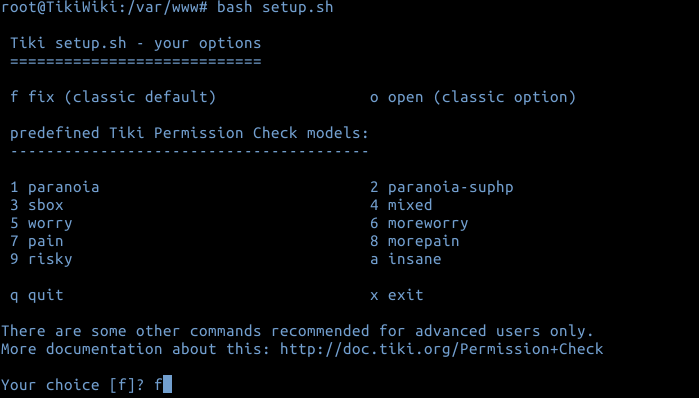 Now you would need to proceed with installation from browser. Navigate over to your cloud server's IP /tiki-install.php (http://198.199.88.201/tiki-install.php in our case): 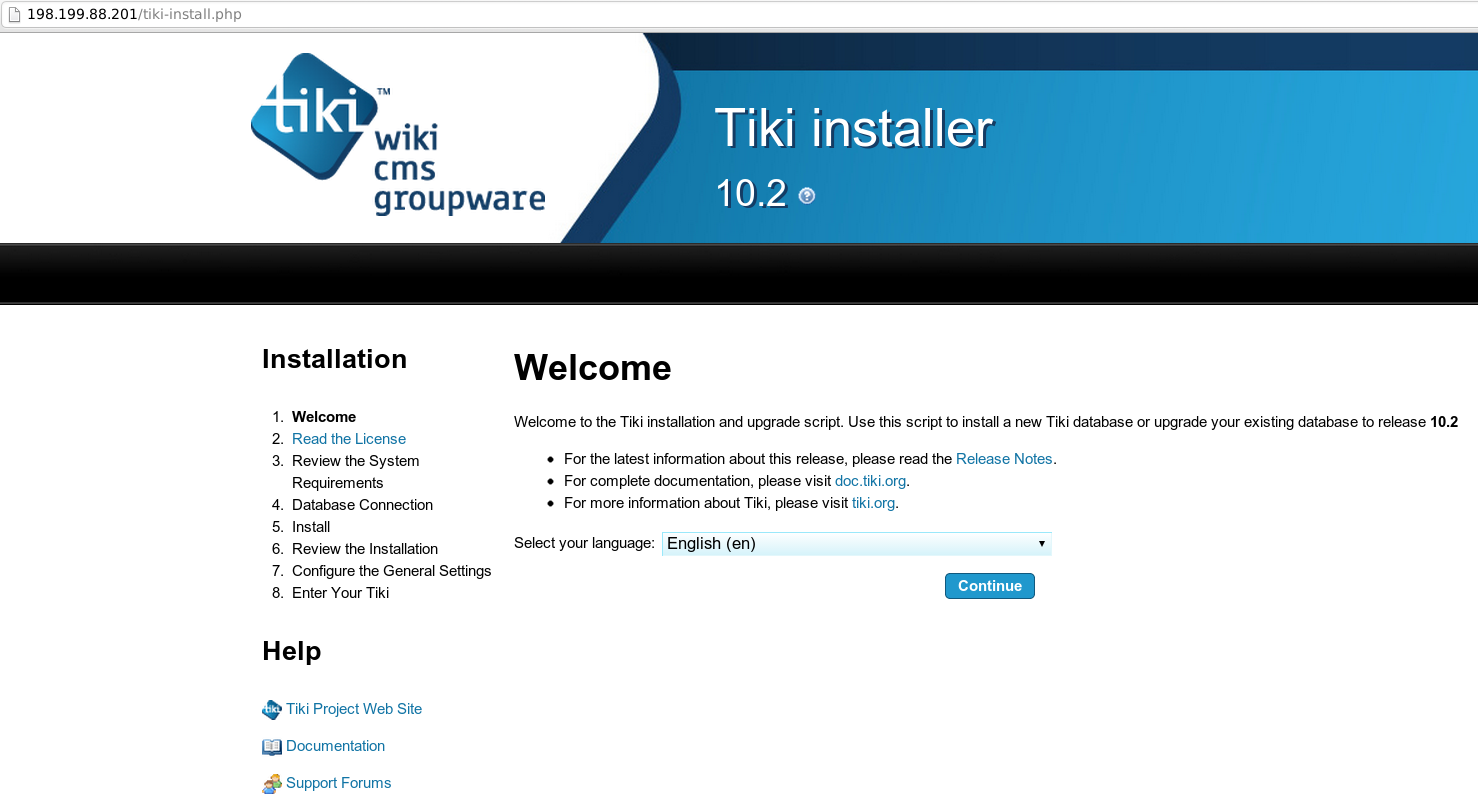 Hit Continue, Accept License Agreement, and once you get to Database settings, put the following credentials: Database type: MYSQL improved (mysqli) Host name: localhost Database name: tiki User name: tiki Password: PassWord (or one you specified in Step 2 above) 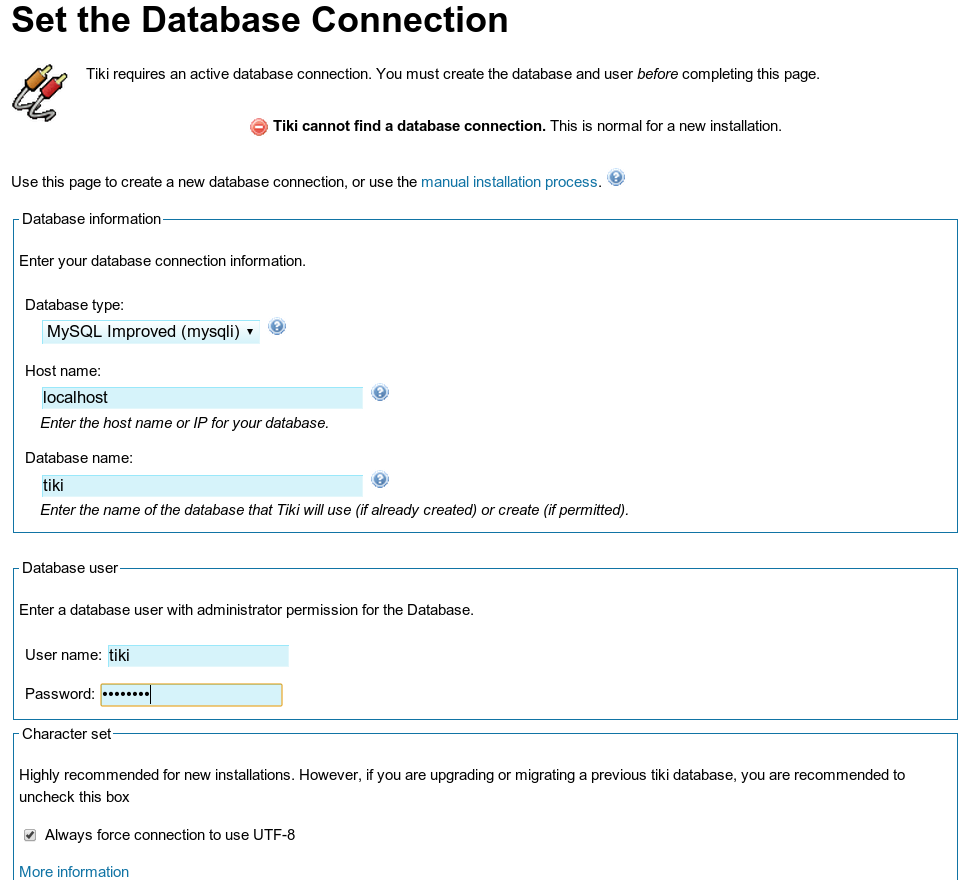 For database type, select InnoDB: 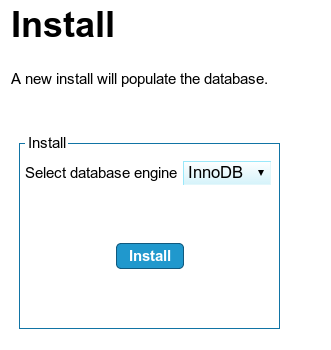 Note that the default username is admin and password is admin 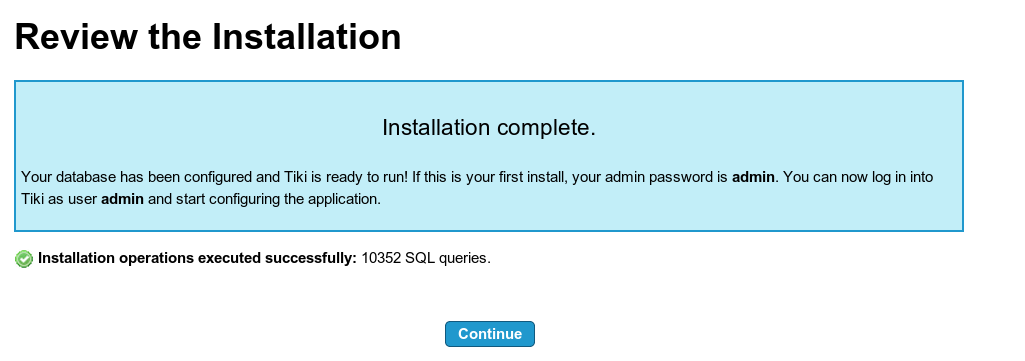 Select whether you want to use HTTPS (SSL), enter your e-mail, and selectVisible To Admin Onlyfor PHP error reporting: 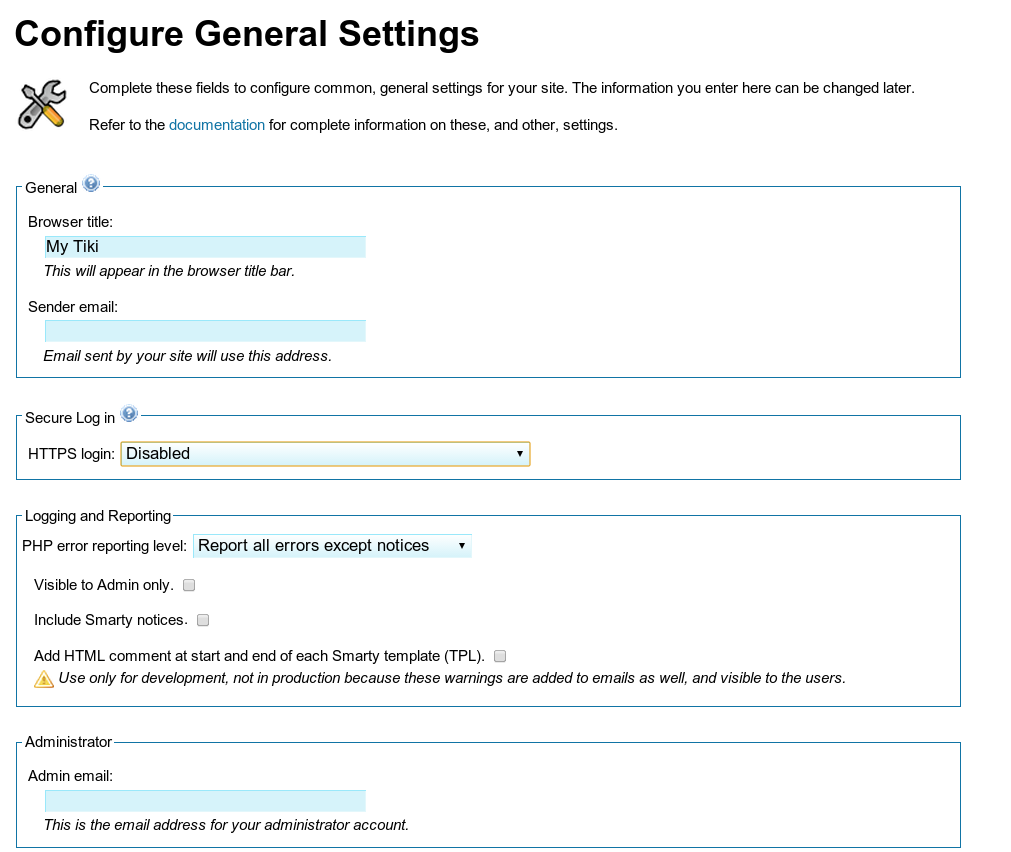 Next, Enter the Wiki and Lock Installer: 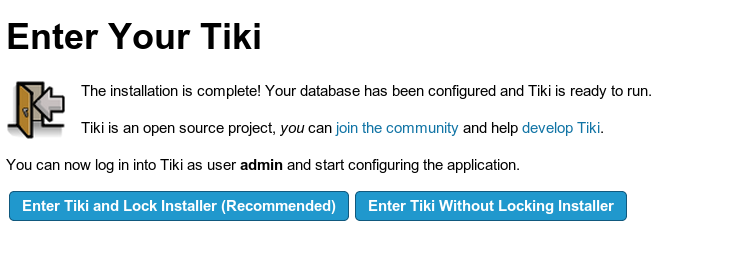 You will be required to change your admin password: 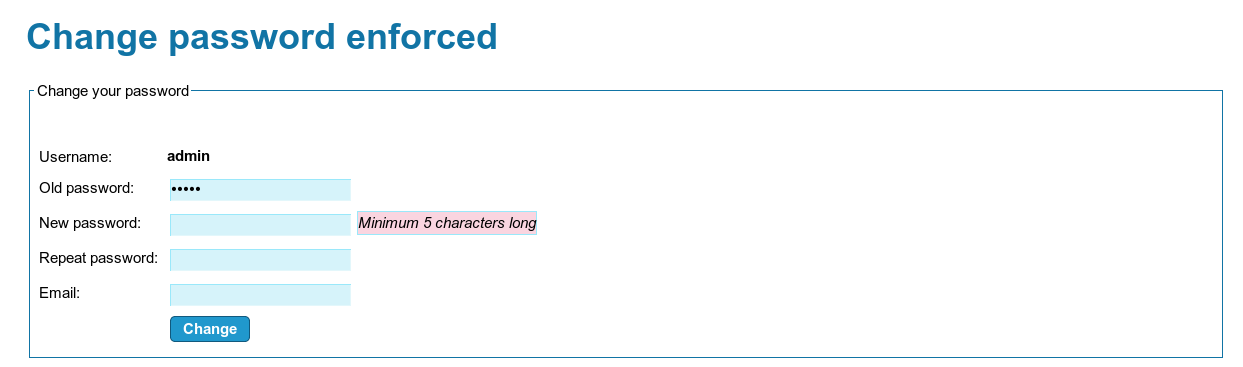 And you are all done! |
Attachments

There are no attachments for this article.
|
Related Articles 
How To Install Git on Ubuntu 12.04
Viewed 6950 times since Mon, Dec 23, 2013
How To Create a SSL Certificate on Apache for Ubuntu 12.04
Viewed 4008 times since Mon, Dec 23, 2013
How To Set Up mod_security with Apache on Debian/Ubuntu
Viewed 4941 times since Thu, Dec 26, 2013
How To Configure Secure Updates and Installations in WordPress on Ubuntu
Viewed 6032 times since Sat, Jan 4, 2014
How To Install Linux, Apache, MySQL, PHP (LAMP) stack on Ubuntu
Viewed 7379 times since Thu, Jan 2, 2014
How To Launch Your Site on a New Ubuntu 12.04 Server with LAMP, SFTP, and DNS
Viewed 3439 times since Thu, Dec 26, 2013
How To Use Top, Netstat, Du, & Other Tools to Monitor Server Resources
Viewed 7608 times since Sat, Jan 4, 2014
How to Install Piwik on an Ubuntu 12.04 Cloud Server
Viewed 3869 times since Sat, Jan 4, 2014
How To Install Apache Tomcat on Ubuntu 12.04
Viewed 4496 times since Mon, Dec 23, 2013
How To Create Nagios Plugins With PHP On CentOS 6
Viewed 7874 times since Sat, Jan 4, 2014
|
 Subscribe to Article
 Print Article
-
 Email Article to Friend
 Export to PDF
 Export to MS Word
 Tweet This Article
 Digg It
 Stumble Upon
 Del.icio.us